
Imagine this: a customer finds your website at 11pm. She likes your service and fills in your contact form. Then... nothing. You see her message the next morning, but by then she has already called your competitor. This happens to businesses every single day — and it is completely fixable.
A lead is simply a person who shows interest in your business — someone who fills a form, asks for a price, or requests a call back. Lead capture means collecting their details before they leave your website. This guide walks you through an automate lead capture WordPress setup in plain, simple words. No technical background needed.
What "Automate Lead Capture" Actually Means
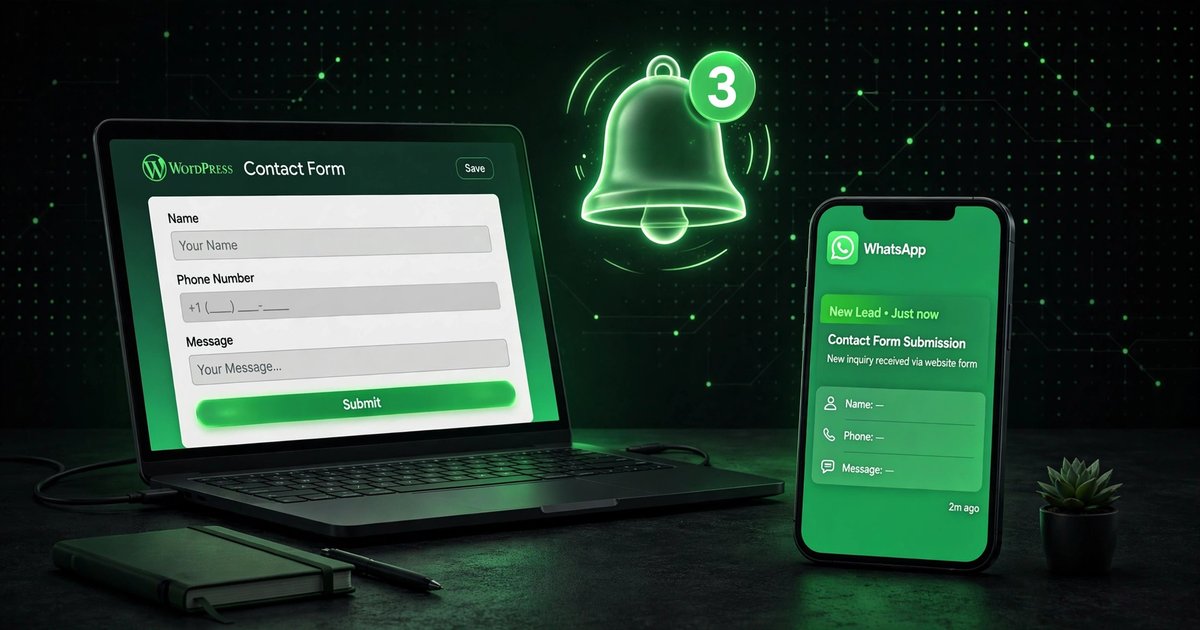
An automate lead capture WordPress system does three jobs for you, day and night. First, it collects the visitor's details through a form. Second, it alerts you instantly on WhatsApp or email. Third, it sends the visitor an automatic reply so they know you received their message.
Think of it as a receptionist who never sleeps: every automate lead capture WordPress workflow starts with a simple form and ends with a happy, answered customer. Nothing sits in an inbox for hours. Nothing gets forgotten.
Why Replying By Hand Loses You Customers
Most small businesses still check their website forms once or twice a day. Sales research shows the same pattern again and again: the business that replies first usually wins the customer. If you reply after 6 hours and your competitor replies in 6 minutes, guess who gets the order?
Once you automate lead capture WordPress handles the boring parts for you. You still make the phone call or send the quote yourself — the system just makes sure you never miss the chance. Here is what goes wrong without it:
- Night and weekend enquiries wait until morning — many customers won't wait.
- Messages pile up in an email inbox that nobody checks regularly.
- There is no record of who asked what, so follow-ups are guesswork.
- You look slow next to competitors who reply instantly.
The 5 Parts of an Automated Lead-Capture System
Every automate lead capture WordPress system has the same five parts. You don't need all five on day one — start with the first three, then add the rest.
Smart contact form
A short form on your website — name, phone number, and message. Keep it to 3–4 fields so visitors actually finish it.
Instant alerts
The second someone submits the form, you get a WhatsApp or email alert. No more discovering enquiries hours later.
Automatic first reply
The visitor instantly gets a message: "Thanks! We got your enquiry and will call you soon." They feel heard right away.
Spam protection
A simple "I'm not a robot" checkbox blocks spam bots from flooding your inbox with junk. One click to turn on.
Follow-up emails
If the visitor doesn't buy right away, the system sends a polite reminder email after a few days. Fully automatic.
Set It Up on WordPress in 5 Steps
Here is the exact automate lead capture WordPress checklist we recommend. You can finish all five steps in one afternoon — no coding needed.
In your WordPress dashboard, go to Plugins → Add New and search for "WPForms". Install and activate the free version. A plugin is simply an add-on app that gives your website a new feature — in this case, forms.
Create a new form with just four fields: name, phone number, service needed, and message. Short forms get far more replies than long ones — every extra field loses you customers.
Install a free "form to WhatsApp" addon (WPForms has one, and so do most form plugins). Enter your WhatsApp number. This is the step where your automate lead capture WordPress setup starts feeling magical — submit a test and watch the message arrive on your phone in seconds.
In the form settings, turn on the confirmation message and write something warm: "Thanks! We received your enquiry and will call you within 2 hours." The visitor sees this the second they click submit.
Add the form to your contact page, your homepage, and at the end of your service pages. A form nobody can find captures nobody — place it where visitors make decisions.
Best Form Plugins for WordPress
Any plugin on this list can run your automate lead capture WordPress system. For most small businesses, the free version of WPForms or Fluent Forms is more than enough.
| Plugin | Free version? | WhatsApp alerts | Best for |
|---|---|---|---|
| WPForms Lite | Yes | With free addon | Beginners — easiest drag-and-drop builder |
| Fluent Forms | Yes (generous) | With free addon | Best free features overall |
| Contact Form 7 | Yes | Needs an extra plugin | Developers who like full control |
| Gravity Forms | No (paid) | Built-in integrations | Bigger businesses with complex forms |
Our pick for most readers: start with Fluent Forms or WPForms Lite. Both are free, both work with WhatsApp alert addons, and both take under 30 minutes to set up. You can browse them in the official WordPress plugin directory to compare before you install.
How the WhatsApp Alert Part Works
Here is what happens behind the scenes: the visitor clicks "submit" → the form plugin passes their details to a small connector addon → the addon forwards everything to your WhatsApp number as a neat message with the name, phone, and enquiry. You don't need any paid WhatsApp API for this — the free addons simply open a chat message to your number. Connecting it takes about 10 minutes.
Imagine a real example: a restaurant owner gets a catering enquiry at 9pm through her website form. Her phone buzzes instantly on WhatsApp. She calls back in 5 minutes and books a 200-guest order. Without the alert, she would have seen the email next morning — and lost the order to someone faster.
6 Mistakes That Kill Your Lead Capture
Even a good automate lead capture WordPress setup fails if you make these mistakes. The good news: every one of them takes five minutes to fix.
- Too many form fields — keep it to 3 or 4.
- No spam protection — robots will flood your inbox within days.
- Alerts going to an email nobody checks — send them to WhatsApp instead.
- No automatic reply — the visitor wonders if the form even worked.
- Form hidden on a hard-to-find page — put it where decisions happen.
- Never testing it — submit a fake enquiry yourself every month.
How to Know It's Working
Test your automate lead capture WordPress system once a month with a fake enquiry. If the WhatsApp alert and the automatic reply both arrive within a minute, your system is healthy.
Frequently Asked Questions
How much does an automate lead capture WordPress setup cost?
The basic setup is free — a free form plugin plus a free WhatsApp addon. Paid form plugins with extra features typically range from about $40 to $200 per year, depending on the plugin and plan. Start free and upgrade only when you need more.
Do I need the WhatsApp Business API for alerts?
No. The free form-to-WhatsApp addons simply open a chat message to your number — no API, no approval process, no monthly fee. The official API is only needed by large companies sending thousands of automated messages.
Will this work with my current WordPress theme?
Yes. Form plugins work with almost every WordPress theme, including Elementor, Kadence, and block themes. You paste a short piece of code (called a shortcode) wherever you want the form to appear.
What about spam? Won't robots flood my form?
Turn on the built-in spam protection (Google reCAPTCHA or Cloudflare Turnstile) in the plugin settings. It adds a simple "I'm not a robot" checkbox and blocks nearly all junk.
I already have a contact page. Is that not enough?
A plain contact page only collects messages — nobody gets alerted and the visitor hears nothing back. Automation adds the instant WhatsApp alert and the automatic reply. That speed difference is what wins customers.
Want This Set Up For You?
Start your automate lead capture WordPress system this week — or let our team build it for you. We set up WordPress lead-capture systems for small businesses, with forms, WhatsApp alerts, and follow-up emails done right.
Get a Free Consultation →