
If you run a shop, restaurant or office, many of your customers use iPhones. Every iPhone comes with Apple Maps already installed. When someone asks Siri for a coffee shop near them, Apple Maps gives the answer — but only if your business is listed there. This simple guide shows you how to list your business on Apple Maps with Apple Business Connect, step by step. No tech skills needed.
What Is Apple Business Connect?
Apple Business Connect is Apple's free tool for business owners. Think of it like Google Business Profile, but for Apple. It lets you control how your business appears on Apple Maps, Siri and Spotlight search. You add your name, address, hours, phone number and photos. Apple then shows this information to iPhone users near you.
Apple launched Business Connect in many countries. An Apple Business Connect listing means iPhone users near you can find you, call you and get directions to your shop — straight from the apps already on their phones. With Apple Business Connect, you manage all of this from one free dashboard.
Why Apple Maps Matters
Most business owners only think about Google. That is a mistake. Apple Maps reaches people that Google never touches. Here is why it deserves your attention:
Setting up your Apple Business Connect listing takes about 30 minutes and costs nothing. For that small effort, you reach every iPhone user who searches near you. Pair it with your Google listing and you cover both phone worlds.
What You Need Before You Start
Get these ready before you begin. It makes the setup smooth:
Apple Business Connect: Step-by-Step Setup
Follow these steps in order. Take your time — correct details now save you trouble later.
Go to Apple's Business Connect site and sign in with your Apple ID. If you do not have an Apple ID, you can create one free on any device — you do not need an iPhone for this.
Type your business name and city. Apple may already show a basic, unclaimed listing for your shop. If you see it, click it and choose "claim this business." If nothing appears, create a brand-new listing.
Add your business name, full address, phone number, website and category. Pick the category that fits best — for example "Restaurant," "Clothing Store" or "Dental Clinic." A wrong category confuses customers, so choose carefully.
Upload clear photos of your shopfront, your team at work and your best products. Then add your opening hours for all seven days. If you close on public holidays, set that too — wrong hours lose customers fast.
Apple now checks that you really own the business. This step is explained in detail in the verification section below. Once Apple approves you, your listing goes live — usually within a few days.
Fill In Your Listing the Right Way
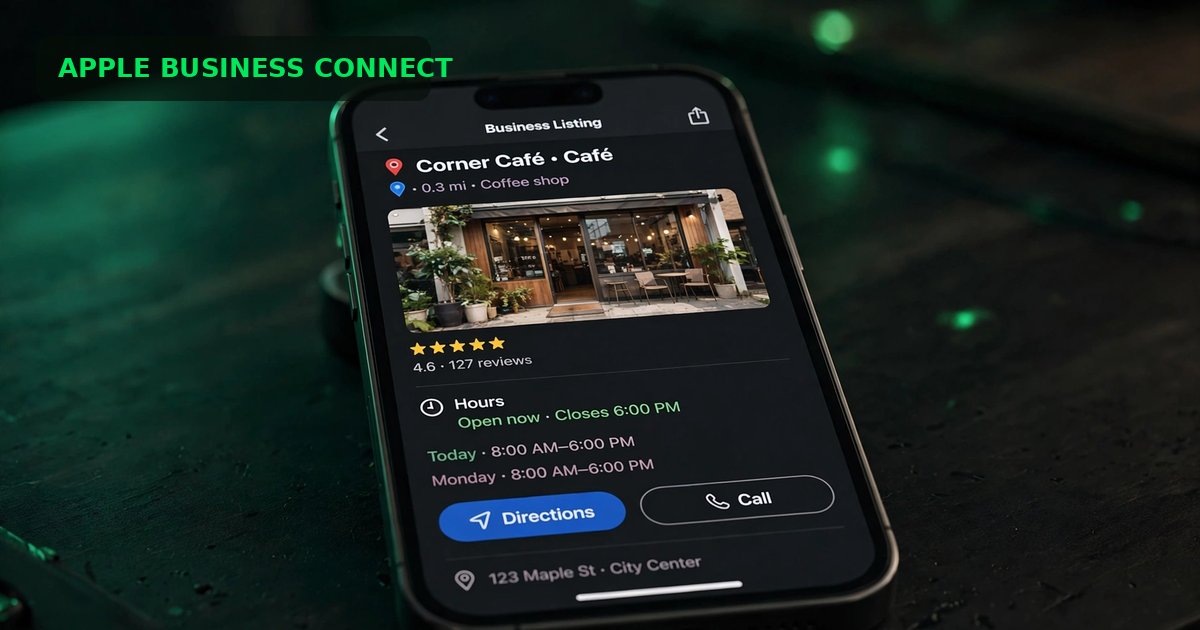
A half-empty listing will not win you customers. iPhone users compare listings side by side, so make yours the complete one:
Photos That Sell
Upload at least five photos: your shopfront, your team at work, your best products. Real photos of your real shop beat perfect stock photos every time.
Hours and Holidays
Set correct hours for all seven days. Update them for holidays and special hours. A customer who arrives at a closed shop rarely comes back.
One-Tap Actions
Add Call, Directions and Website buttons so iPhone users can reach you in one tap. Every extra step you remove brings you more customers.
Also write a short, honest description of what you do — one or two lines is enough. Imagine a small cafe: "Fresh coffee and breakfast. Family seating available." Simple words work best. A complete profile like this stands out because so few small businesses bother to finish theirs.
How Verification Works
Apple usually verifies you in one of two ways: a phone call to your business number, or official documents such as your business registration or a recent utility bill. During this week, answer unknown calls — the verification call can come at any time. Keep a clear photo of your shop's signboard ready on your phone too.
Most businesses get verified within three to seven days. If Apple asks for more proof, reply quickly with clear documents. Slow or unclear replies restart the waiting time, so treat every Apple message as urgent.
Apple Maps vs Google Maps
Should you choose one? No — use both. They reach different people, and both are free. Here is how they compare:
| Feature | Apple Maps (Business Connect) | Google Maps (Business Profile) |
|---|---|---|
| Built into iPhones | Yes — preinstalled on every iPhone | No — needs the Google Maps app |
| Voice search (Siri) | Yes | No |
| Cost | Free | Free |
| Competition | Very low — most businesses missing | High — most businesses listed |
| Car navigation | Apple CarPlay | Android Auto |
| Setup time | About 30 minutes | About 30 minutes |
An Apple Business Connect listing plus a Google Business Profile means no customer slips through — iPhone users find you on Apple Maps, Android users find you on Google Maps. We cover both sides for businesses that want it handled for them.
5 Mistakes to Avoid
These small errors cause big problems. Check your listing against each one:
Frequently Asked Questions
Is Apple Business Connect free?
Yes. Apple Business Connect is completely free for business owners. There are no setup fees and no monthly charges. Apple makes money selling iPhones, not charging shops for listings.
Do I need an iPhone to set it up?
No. You only need an Apple ID, which you can create free on any phone or computer at Apple's website. The setup itself happens in your web browser.
How long does verification take?
Most businesses are verified within three to seven days. Answer Apple's phone call or send clear documents quickly, and you will be at the faster end of that range.
I already have a Google Business Profile. Do I still need this?
Yes. Google reaches Android users. Apple Maps reaches iPhone users, Siri voice searches and CarPlay drivers. They are two different audiences, and both listings are free — so claim both.
Will my business show up on Siri?
Yes — once Apple verifies your listing, Siri can recommend your business when iPhone users ask for places near them. This is one of the biggest reasons to complete your setup.
Want Your Business Found on Every iPhone?
We set up and optimise Apple Maps and Google Maps listings for small businesses — done right, verified fast, and written to bring you calls. Get your free Apple Maps check today.
Get Found on Apple Maps →