
If you run a clinic, salon, consultancy, or home-service business, you lose customers every time someone has to call or message just to book. Adding a WordPress booking system Pakistan customers can use any time of day fixes that — your calendar fills itself while you work.
In this guide, you will learn what a booking system is, what you need before setup, and the exact steps to launch one on your WordPress website. No coding needed.
What an Online Booking System Is
A booking system is a tool on your website that shows your free time slots and lets visitors reserve one. Think of it as a digital receptionist that never sleeps.
Here is how a WordPress booking system Pakistan clinics, salons, and consultants use every day works: a customer picks a service, chooses a date and time, enters their name and phone number, and gets a confirmation. You get a neat list of all bookings inside your WordPress dashboard.
A plugin is a small add-on that gives WordPress a new feature — in this case, bookings. You install it the same way you install an app on your phone: a few clicks, no code.
Why Your Business Needs One in 2026
Customers in Pakistan now expect to book online. When someone finds your clinic or salon at 11 at night, they want to grab a slot right then — not wait until morning to call you.
That is why a WordPress booking system Pakistan businesses add in 2026 pays for itself fast: fewer missed calls, fewer no-shows (people who book but never come), and a professional image that builds trust with new customers.
What Your WordPress Booking System Pakistan Setup Must Have
Before you install anything, decide what your system must do. When you compare any WordPress booking system Pakistan business owners recommend, check for these five things first.
Services and Durations
List each service with its time length — a haircut takes 30 minutes, a facial takes 90. The system must handle different lengths without confusion.
Staff and Time Slots
If two barbers work different shifts, each needs their own calendar. A time slot is simply one bookable block, like 10:00 to 10:30.
Payments and Confirmations
Take full or partial payment online, and send automatic confirmations by email or SMS so customers never wonder if their booking went through.
Reminders That Reduce No-Shows
Automatic reminders a day before each appointment are the single best way to make sure people actually show up.
Mobile-Friendly Booking Form
Most of your customers will book from their phones. The calendar must be easy to tap on a small screen.
Simple Cancellation
Customers should be able to cancel from a link in their confirmation. The freed slot then opens up for someone else automatically.
Set Up Your WordPress Booking System Pakistan: 6 Easy Steps
We will use Amelia, a well-known free booking plugin, as the example. The steps are almost the same for other booking plugins. You can check its full feature list on Amelia's official WordPress.org page.
In your WordPress dashboard, go to Plugins, then Add New, and search for "Amelia". Click Install, then Activate. You now have a free WordPress booking system Pakistan businesses use to take their first online bookings within minutes.
Open Amelia, then Services. Add each service with its name and duration. For example: "Haircut — 30 minutes" or "Bridal Makeup — 180 minutes". Set the price display the way you want customers to see it.
Add each staff member and set their working days and hours. Block lunch breaks and off days so nobody can book when you are closed. Different staff can have different schedules.
Create a "Book Now" page on your website. Add the booking form with a shortcode — a small bracketed code like [ameliastepbooking] that tells WordPress "show the booking form here". Paste it, save the page, and the calendar appears.
Switch on email confirmations for customers and for yourself. Then add SMS reminders one day before each appointment. This single step cuts no-shows more than anything else.
If you want advance payment, connect a payment gateway — a service that safely collects online payments for you, like a digital cashier. You can also start with "pay at the shop" and add online payment later.
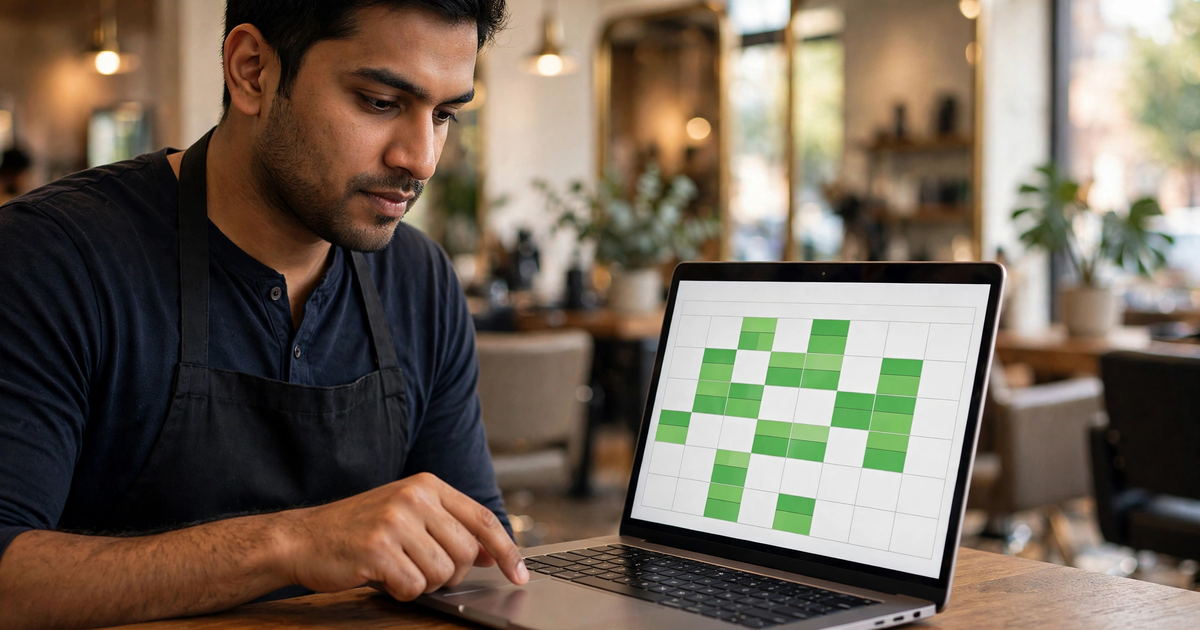
Taking Payments and Sending Confirmations
A good WordPress booking system Pakistan owners rely on handles money and messages without you lifting a finger. Offer two payment choices at first: pay online in advance, or pay at your shop.
Advance payments reduce no-shows because customers commit when they pay. Even a small advance works well. For confirmations, set three automatic messages: an instant booking confirmation, a reminder one day before, and a thank-you message after the visit that asks for a review.
Test Everything Before You Go Live
Before you announce your new WordPress booking system Pakistan customers will use, book a test appointment yourself — on your phone, not just your computer. Walk through this checklist and fix anything that feels off.
5 Booking Mistakes to Avoid
The biggest WordPress booking system Pakistan owners make is launching and never checking the system again. Avoid these five mistakes and your bookings will run smoothly.
No Buffer Time
Back-to-back bookings with zero gap exhaust your staff. Add 10 to 15 minutes between appointments for cleaning and rest.
No Reminders
Without reminders, no-shows pile up fast. Always send an SMS or WhatsApp reminder a day before each visit.
Too Many Form Fields
Ask only for name, phone number, and service. Every extra field you add loses you bookings.
Ignoring Holidays
Block Eid days and public holidays in advance, or customers will book appointments when you are closed.
No Mobile Testing
Most customers book from phones. If the calendar is hard to tap on a small screen, they leave and never come back.
Hiding the Book Button
Put a clear "Book Now" button in your menu and on your homepage. If visitors cannot find it in three seconds, it may as well not exist.
Frequently Asked Questions
Do I need coding skills to add a booking system?
No. A WordPress booking system Pakistan small businesses install themselves needs zero coding — install the plugin, fill in your services and hours, paste the shortcode. If you can use Facebook, you can do this.
Can customers pay online when they book?
Yes. Most booking plugins connect to payment gateways so customers can pay in advance by card or bank transfer. You can also keep a "pay at the shop" option for walk-in style customers.
Will it work for multiple staff members?
Yes. Good booking plugins give each staff member their own calendar and working hours, so two barbers or three doctors never clash with each other.
What happens when a customer cancels?
The time slot opens up automatically so someone else can book it. You and the customer both get a cancellation message, so nobody is left guessing.
Can I get help setting this up?
Yes. If the setup feels technical, our team handles WordPress development in Karachi end to end — plugin setup, payments, reminders, and testing done for you.
Want Bookings Without the Setup Headache?
We will install your booking system, connect payments and reminders, and test every step — so your calendar starts filling from day one. Start with a free review of what your business needs.
Get a Free Booking Review →